Release 12.3.2

Customize Menu Options in Guest Self Service for Guest Display

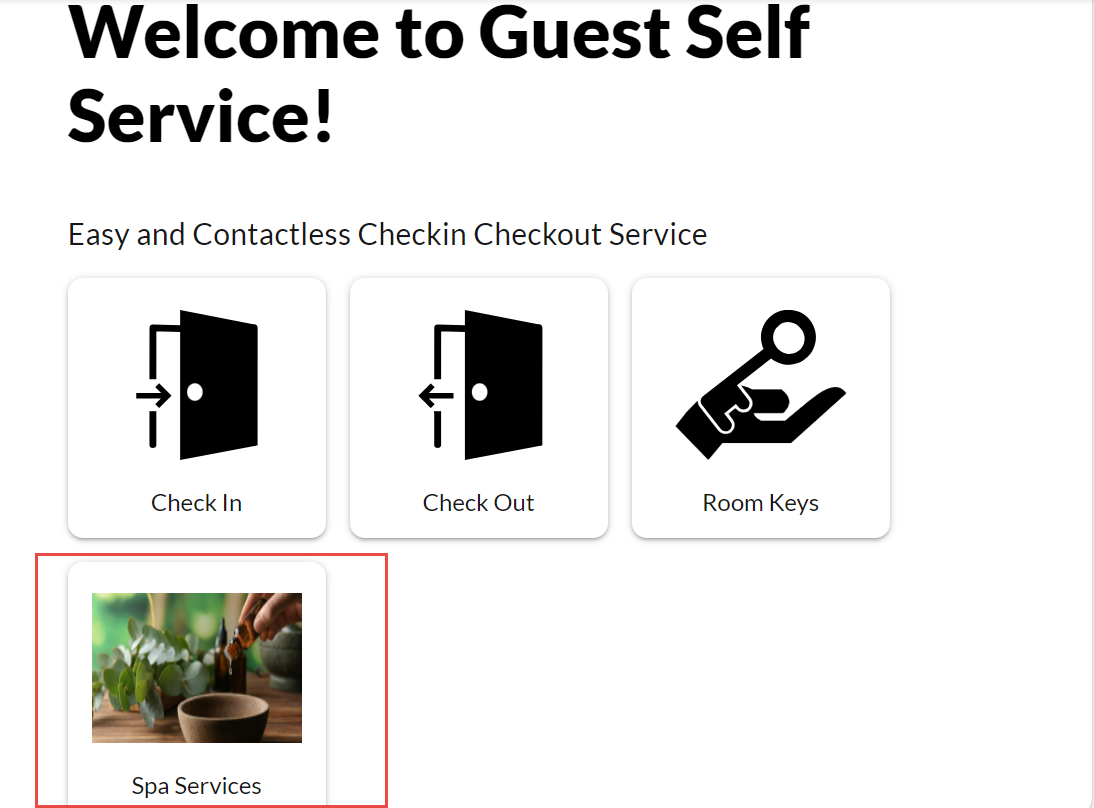
Stay is enhanced to allow users to configure customized menu options in the Guest Self Service Setup screen. The options configured by the users will be displayed as buttons to the guests in the Guest Self Service home screen.

Users can select the following menu option types:

  • Image: Clicking on this button would display an image with the data the property would want the guest to view.

  • URL: Clicking on this button would navigate the guest to a website/web page.

  • Text: Clicking on this button would display information the property would want the guest to view.

When users choose to add more than one menu option, the order in which they must be displayed as buttons in the Guest Self Service home screen can be customized. By default, they are displayed in the order in which they are added and always after the Check In, Check Out, and Book a Reservation menu buttons.

Users can add up to 3 menu options of any option type in the Guest Self Service Setup screen. The total number of menu buttons that can be added to the Guest Self Service home screen is restricted to 6, that is, Check In, Check Out, Book a Reservation, and 3 additional menu options.

To support this feature, the menus, options, and fields have been rearranged and reorganized in the Guest Self Service Setup screen for an improved workflow and user experience.

  • The existing Home Screen tab and the Login tab are moved to a new tab, Home Screen Configuration. It contains the following sections:

    • Home Screen Setup

    • Reservation Search Screen Setup

    • Check In Setup

    • Check Out Setup

    • Room Keys Setup

    • Custom Options

  • The following table contains the description of the fields that fall under each of these menus. An asterisk (*) has been added for all the fields/menus/options that are new. The rest of the information remains the same (but may have been moved to different areas in the UI under the Guest Self Service Setup screen).

  • Menu

  • Fields

  • Home Screen Setup

  • Header

  • Subheader

  • Tagline

  • Screen Image

  • Options - Check In, Check Out, and Room Keys

  • Reset to Default option is provided for the screen image. When clicked, the default screen image is restored.

  • Reservation Search Screen Setup

  • Header

  • Screen Image

  • Reset to Default option is provided for the screen image. When clicked, the default screen image is restored.

  • Check In Setup

  • Check In Icon

  • Check In Options

  • Default Check In Option

  • Display Order

  • Reset to Default option is provided for the Check In icon. When clicked, the default icon is restored.

  • Check Out Setup

  • Check Out Icon

  • Check Out Options

  • Default Check Out Option

  • Display Order

  • Reset to Default option is provided for the Check Out icon. When clicked, the default icon is restored.

  • Room Keys Setup

  • Room Keys Icon

  • Room Keys Validation

  • Default Room Keys Option

  • Display Order

  • Reset to Default option is provided for the Room Keys icon. When clicked, the default icon is restored.

Custom Options (*)

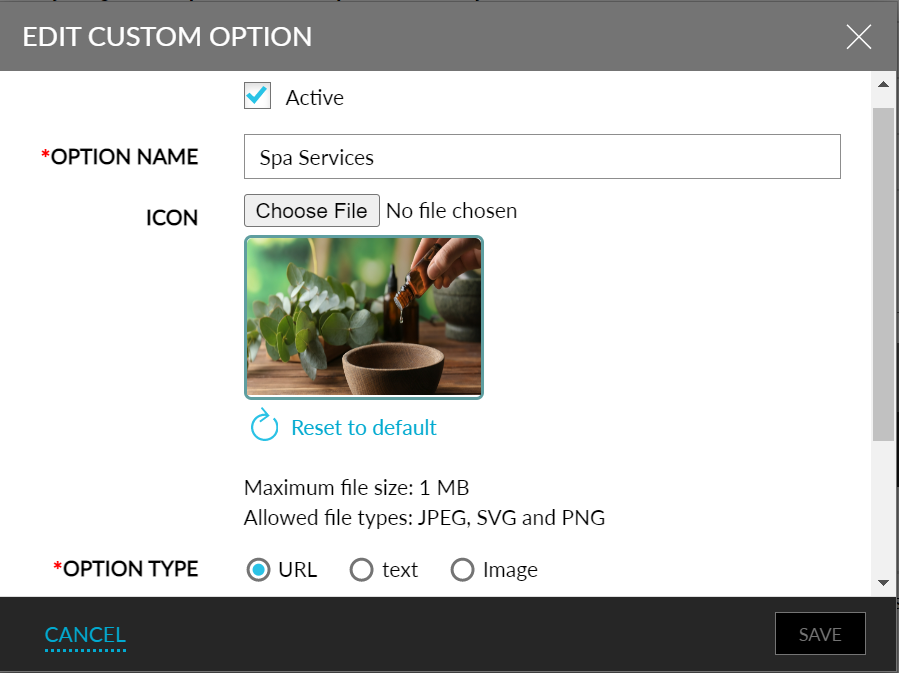
  • Users are allowed to add a maximum of 3 menu options in the Add Custom Options screen.

  • Option Name

  • It is a mandatory field that allows users to enter a name for the button. A maximum of 20 characters including alphanumeric and special characters can be entered.

  • Icon

  • Allows users to upload an icon for the button. Users can upload JPEG, SVG, and PNG files and the allowed size is up to 1 MB. An icon will be present by default. Users can revert to the default icon when required.

Option Type (*)

  • URL

  • This option is selected by default. When users select the URL option, a text field is displayed for entering the URL. Users can enter a maximum of 250 characters including alphanumeric and special characters. The text field is mandatory when the URL option is selected.

  • Text

  • When users select the Text option, a text field is displayed for entering the Text. The text field is mandatory when the Text option is selected. Users can enter alphanumeric and special characters. There is no limit for the number of characters to be entered.

  • Image

  • When users select the Image option, an option is provided to upload an image. By default, there is no image. Users are allowed to upload JPEG, SVG, and PNG files and the allowed size is up to 1 MB. If the image option is selected, uploading an image is mandatory.

  • Active

  • Allows users to make an option active by enabling the flag and inactive by disabling the flag. When users try to add more than 3 menu options, the message, A maximum of three custom options can be activated. Inactivate an existing option to activate a new option is displayed.

Graphical user interface, text, application

Description automatically generated

Graphical user interface, application

Description automatically generated

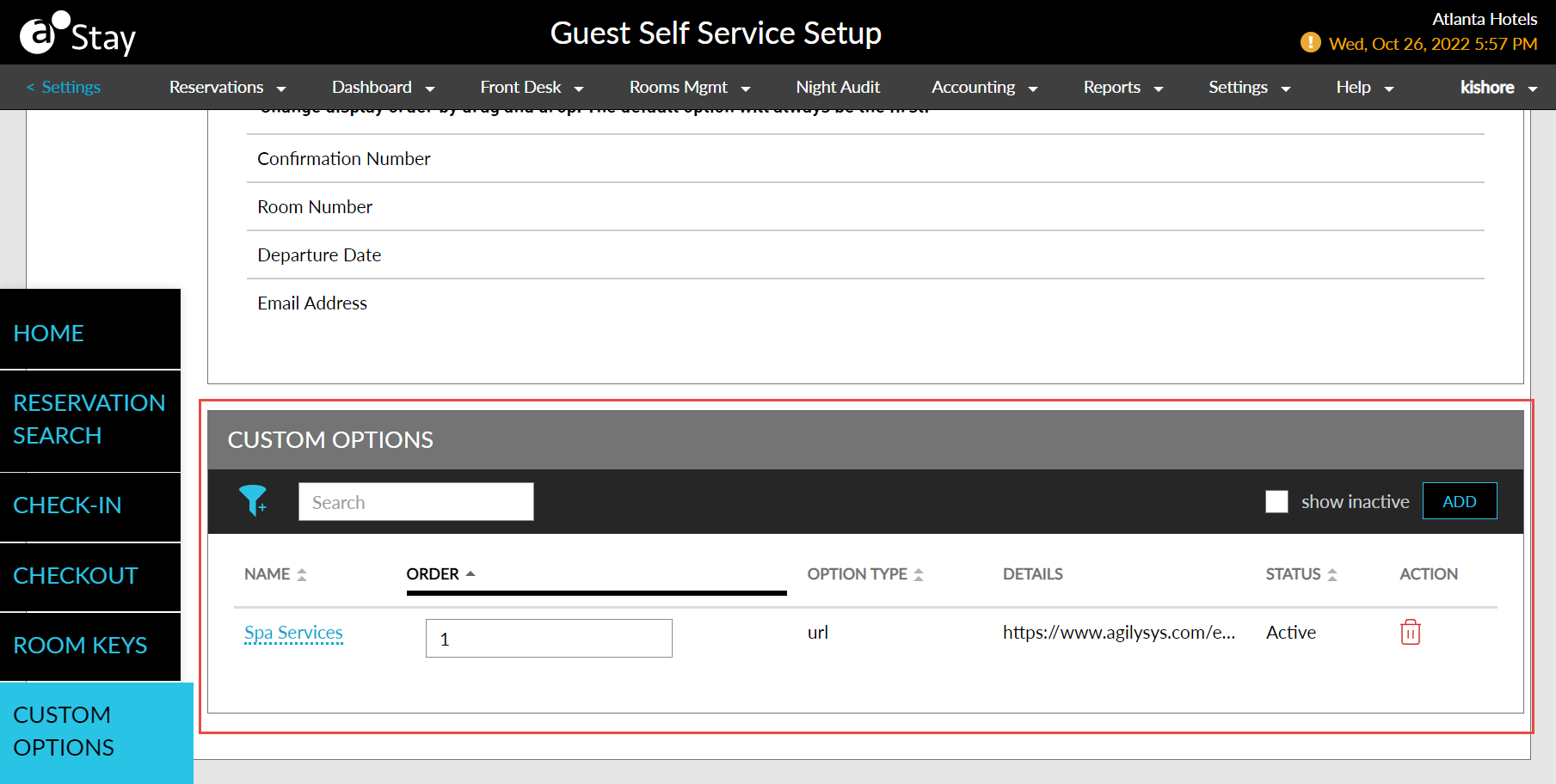
  • The added options are displayed in the Custom Options section with the following columns:

    • Name - Displays option name.

    • Order - Displays the order of the active custom options. It is disabled for inactive options.

    • Icon - Displays the option icon.

    • Option Type - Displays Option type.

    • Details - Displays URL or Image thumbnail or Text based on the option type selected.

    • Status - Displays the Active/Inactive status of the option.

    • Action - Allows users to delete the option by clicking the delete icon.

    • Show Inactive - When enabled, displays all the inactive custom options.

  • The Name, Order, Option Type and Status columns are sortable.

  • Users can search for a custom option using the option name.

  • Users can filter the options based on the option type and status.
A screenshot of a computer

Description automatically generated with medium confidence